Create a New Work Plan
When creating a new Work Plan, you are building a template that contains the operations and steps that apply to all runs. Later, you can add operations, steps, notes, and details that are specific to an individual run.
- Navigate to Work Plans from the left sidebar.
- Click the
+ New Templatebutton. - Name the plan something descriptive of your procedure (e.g. "Assemble Part 1234").
- Click
Submitto create the new plan.
You nave have a new Work Plan!
Assemble a Part
Work Plans are perfect for capturing the work required to assemble a part. For this example, let's associate a part with this Work Plan.
Flexibility. Boltline is built to be flexible. While you can use a Work Plan to assemble parts, its capabilities go far beyond that. Boltline Work Plans can be used to execute a wide range of engineering or business processes.
To assemble a part:
-
Click the
+ Choose Partbutton under the name of your Work Plan.
-
Search for the part number you want to assemble (e.g. Part 1234).
-
Select the part and revision, and click
Submit.
The part is now associated with this Work Plan!
Add Operations
In Boltline, operations define the steps required to complete a task. Users often associate an operation with a specific work center, like Proofing, Cleaning, or Testing, to accurately describe and scope their work.
Add your First Operation
Now that you have a Work Plan, associated assembly to build (or not), let's create the first operation:
-
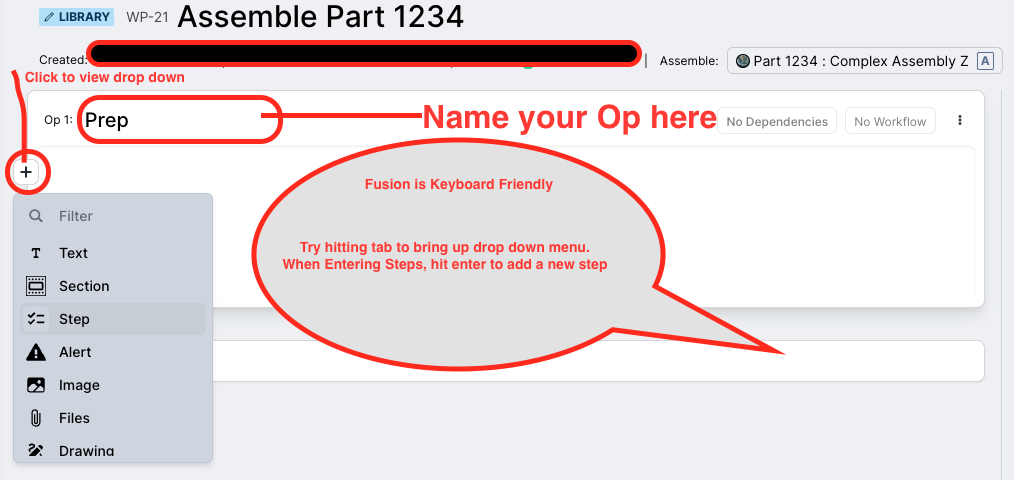
Click the text box where it says Getting Started and name your operation with something descriptive (e.g. Prep).
-
Click the
+in the input box for the operation to display a drop-down menu of items you can add to the operation. -
Select Step to add an operation step, and add a meaningful description for that work (e.g. Clean area).
-
Repeat this for as many steps as needed for this operation.
The first operation is configured!
You can add more than just steps for the operation. You can add text, diagrams, and other elements that help to communicate or collect information for the operation.
Add Additional Operations
- Click inside the Add Operation input field and enter a concise description for the operation.
- Click
Enter.
Your new operations are created.
- Add any additional steps and fields that will help you and your team to complete the operation.
Boltline is keyboard friendly! Try hitting the Tab button while inside the text area, instad of clicking, to bring up the menu.
Use your arrow keys to select an item.
Hit Enter after each step to automatically add a new step!
Attach a Workflow to an Operation
Relationships matter in Boltline. One of Boltline's superpowers is to use those relationships to enable faster work. Let's associate our operations to Workflows. This allows Boltline to automatically create new Workflow cards for attached Workflows when the Work Plan is executed.
Have we mentioned Boltline's flexibility? If this Work Plan doesn't call for new Workflow cards to be generated, great -- skip this entirely!
To attach a Workflow:
-
Click the
No Workflowbutton from within the operation.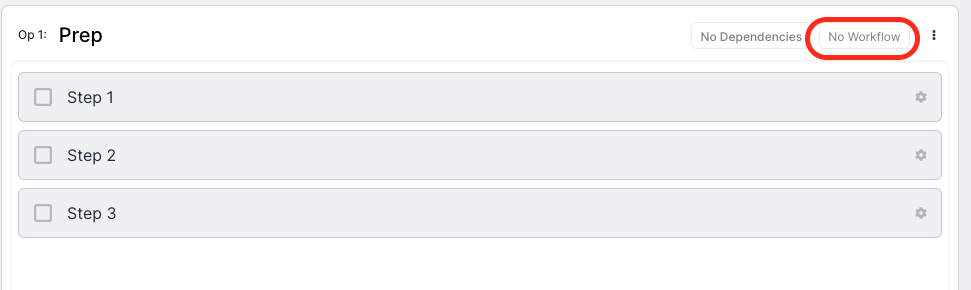
-
Click the
Select Workflowfrom the dialog box. -
Select the Workflow you want to attach.
-
:::info Template Only! You do not have to modify any of the Workflow card fields (Title, Intake Status, etc). This is just the Work Plan template. You will modify these from the Work Plan run. :::
-
Close the dialog box.
The Workflow is now attached to this operation. Every time this Work Plan and operation is run, a new Workflow card for the associated Workflow will be created.
You can associate every operation with a Workflow, or not.
Dependent Operations
You can mark operations with upstream or downstream dependencies. If an operation has an upstream dependency, Boltline will block the operation from being started until the upstream dependency is complete.
Flexible. We understand Boltline customers need to go fast. Sometimes going fast means not being blocked. By default, Boltline does not create operation dependencies, allowing for work to begin at the soonest responsible moment, not when the software decides. Of course you can change this. Boltline Flexibility!
To create dependencies:
-
Click the
No Dependenciesbutton from within the operation.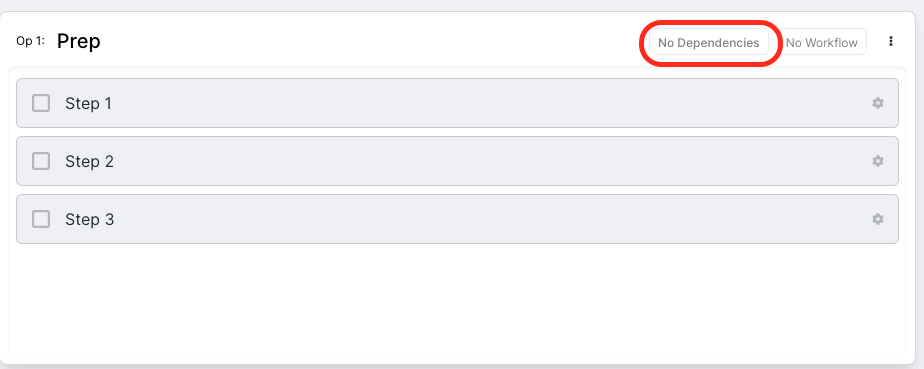
-
Under the Dependencies section of the Operation Settings dialog, add either an upstream or downstream operation.
Dependency DefinitionIf an operation has an upstream dependency, the operation will be blocked until the upstream operation completes. If an operation has a downstream dependency, the operation will block the downstream op until it completes.
-
Close out of the Operation Settings dialog box.
-
Continue to add dependencies to your other operations as your procedure requires.
This Work Plan is now set up with dependent operations. When a run is started, the dependency blocking will be activated.
Publish the Work Plan
When your Work Plan template is completely set up, click Publish.
Once you publish your Work Plan, you can no longer edit that version, but you can create a new version whenever changes are needed.
Now you are ready to start a Work Plan run.